LapPacer for Apple Watch
LapPacer is a real-time pacing display for pool swimmers, on Apple Watch and iPhone. Wear the watch and let it record your swim as a real workout in the Health app while showing your live pace. The LapPacer iPhone app is required to install the watch app — it can also run its own independent pacing session directly on your phone; see the iPhone Instructions for that.
Health Access Required
The watch app's pacing display works by comparing your actual distance — detected automatically through a live Health workout session — against your target pace, so it can't function at all without Health access. The first time you open the app, you'll be asked to grant it; if you decline, a "Health Access Needed" screen appears instead of Setup, with a button to try again and instructions for enabling it manually (Health app → Sharing → Apps → LapPacer, or Settings → Privacy & Security → Health → LapPacer, on your paired iPhone).
Setup
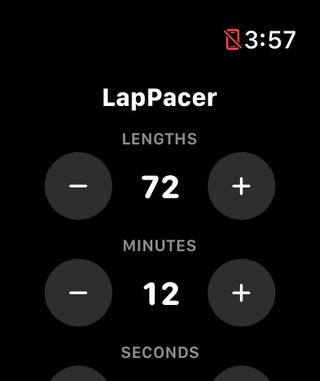
- Lengths — the total number of pool lengths for the whole set.
- Minutes / Seconds — the desired/target total time for the entire set.
- Secs / Length — your target pace, in seconds per length. This is simply Minutes/Seconds divided by Lengths, so it updates on its own whenever you change either of those. You can also adjust it directly, and Minutes/Seconds will be recalculated to match — handy when you know the pace you want to hold but not the total time it works out to. Adjusting it steps to whole seconds (a set working out to 9.6 goes to 10, not 10.6), and the length count is never changed.
- Want a pace between whole seconds? Adjust Seconds instead and watch Secs / Length follow. Adding or removing one second of total time spreads across every length, so how finely it moves depends on your set: over 10 lengths each second shifts the pace by a tenth (9.6 → 9.7), while over 72 lengths it takes about seven seconds to move the pace by a tenth. Use Secs / Length to get close, then Seconds to fine-tune.
- Countdown (sec) — how long the "Get Ready" countdown runs before the length counter starts. Set it to 0 to skip the countdown entirely.
- Pool Length — your pool's length, used both for pacing and recorded as the lap length on the workout saved to Health.
- Units — Yards or Meters, matching how your pool is measured.
Tap any +/− button to adjust a value.
Starting a Set
Tap Start. Your settings are saved on the watch and loaded automatically next time. The "Get Ready" countdown appears in yellow, giving you time to get in position. Once it reaches zero, this also begins a real Health workout session — see "Recording Your Swim in Health" below — that your pacing display depends on for the rest of the set.
Reading the Display
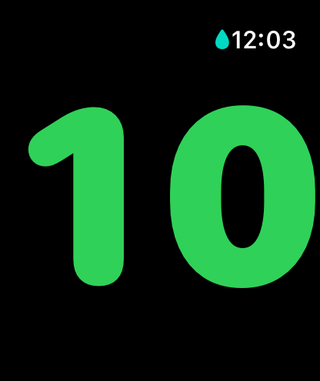
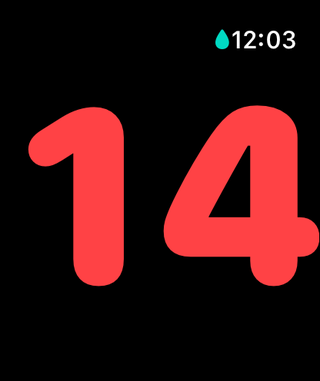
The display shows a single integer — how many yards or meters you are ahead of or behind your target pace — updated at the end of each length you actually finish, detected automatically the same way the native Workout app detects lengths for a pool swim.
Unlike a continuously climbing display, this number stays put while you're mid-length, then jumps the moment you finish one to reflect the new gap — it isn't projecting anything between lengths, just reporting where you actually stand each time you touch the wall.
- Green — you've swum farther than your target pace by this point in the set
- Red — you're behind your target distance; the watch also gives a brief haptic tap at the end of any length where you're behind
This is computed from length-completion events, not from the heart-rate/distance/calorie sensor data watchOS separately records into the workout (see Privacy Policy).
For the final 10% of your planned lengths, the background turns blue as a heads-up that you're almost done. During the very last length, you'll also feel 4 evenly-spaced haptic taps — a countdown building up to the wall, timed against your target pace. Both are based on lengths you've actually finished, not just elapsed time — swimming faster or slower than planned doesn't throw off when they kick in.

Stopping a Set
Press and hold the Digital Crown to disable Water Lock — this immediately stops the current set. Water Lock keeps your watch's touchscreen locked against accidental water taps for the entire set (see "Water Lock" below), so there's no on-screen button or long-press that can stop one directly; disabling Water Lock is the only way, whether you're still mid-swim or already looking at the finished screen.
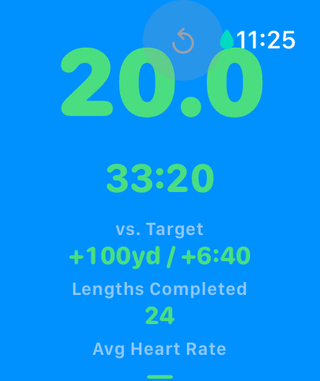
Stopping partway through still shows you the summary described under "Finishing" below — your pace gap, the lengths you actually completed, and your average heart rate — rather than discarding the set. A short swim is still a swim, and the numbers are the same ones a completed set shows; only the lengths-completed count will be lower than you planned. From there, the reset button returns you to Setup.
Finishing
When the set completes, the display shows your planned lengths and planned time, both in green, followed by a summary: how far ahead or behind your target pace you finished (distance and time), your actual lengths completed (from Health's own real detection — see below, this can differ from your planned lengths above), and your average heart rate for the set (briefly shows “—” right after finishing, same as the native Fitness app's own loading state, until Health finishes processing it).
"Completes" means your actual last length, not your planned time running out — if you're swimming faster or slower than planned, this screen appears exactly when you finish that length, whichever happens first or last.
Recording Your Swim in Health
Starting a set begins a real pool-swim workout session, recorded to the Health app under the name LapPacer (not the generic "Pool Swim") — using your configured pool length and units for the recorded lap distance. This also keeps the display awake during your set, the same privilege the native Workout app gets, and is what your pacing display itself depends on for detecting each length (see "Health Access Required" above). It also enables watchOS's automatic collection of heart rate, calories, and water temperature into the workout — alongside the distance and stroke count LapPacer calculates from your lengths — the same set of data the native Workout app records, letting Apple's Fitness app show Auto Sets and Splits for your swim. A set only ever ends when you explicitly stop it (see the note above) — never automatically just because you reached your pace target.
Water Lock
The watch locks its touchscreen against accidental water taps for the whole set, automatically — there's no Setup toggle for this, it always happens from the moment you tap Start, showing the system's Water Lock screen. To unlock it (and stop ignoring your touches again) — which also stops the current set, see "Stopping a Set" above — press and hold the Digital Crown until the display says Unlocked; this also ejects water from the speaker, same as it does for the native Workout app.
Always On Display
On Apple Watch Series 5 and later with Always On Display enabled in Settings, the pace display stays dimly visible even when your wrist is down or the watch is sitting stationary. Apple Watch Series 4 does not support this — its screen will sleep normally when not actively raised or touched.
Support This Project
LapPacer is free on the App Store, built and maintained by one person. If it's useful to you, a small tip helps support ongoing development and hosting costs, and helps cover the annual Apple Developer Program fee.
Apple Pay, cards, and other methods all work through the same checkout — Apple Pay is just shown as a hint that it's supported.
LapPacer is provided “as is”, without warranty of any kind, express or implied, including but not limited to the implied warranties of merchantability, fitness for a particular purpose, and non-infringement. In no event shall the author be liable for any claim, damages, or other liability arising from or in connection with the app or its use.
LapPacer is a training aid, not a safety device. It does not monitor your wellbeing and cannot summon help. Never swim alone, and never rely on it in place of your own judgement or a lifeguard.
Contact
Questions or feedback? Email [email protected]